Data Distribution
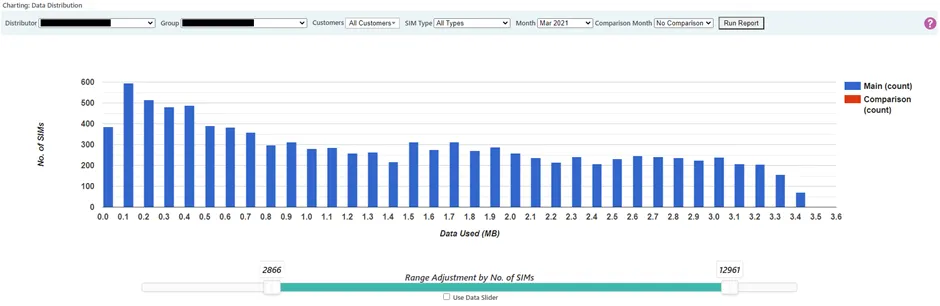
Data Distribution shows how data usage is spread across your SIM population within a selected month.
The chart divides usage into buckets and counts how many SIMs fall within each usage range. This creates a histogram view of your estate’s data behaviour.
You can also select a second month to compare distribution patterns side by side.
Viewing distribution
By default, the chart can display a summary of all SIMs across all groups. In most cases, you will refine the view by selecting a specific group to analyse behaviour more precisely.
Only SIMs that have recorded data sessions in the selected month are included in the dataset.
Refining the view
A slider control allows you to adjust how the data is displayed.
You can:
- Filter based on the number of SIMs shown
- Limit the data range displayed
- Exclude very high or very low usage outliers
The slider can operate in two modes:
- No. of SIMs mode – Filters based on the number of SIMs
- Data slider mode – Filters by restricting the data usage range displayed
Toggle between these modes using the Use Data Slider option.
This allows you to remove extreme values and focus on the “normal” operating range of your SIM population.
Drilling into individual SIMs
If you zoom in sufficiently, individual SIMs become identifiable within the distribution.
Selecting a SIM links directly to its SIM Focus page for detailed investigation.
When to use Data Distribution
Data Distribution is particularly useful when:
- Reviewing how usage varies across a group
- Identifying outliers
- Setting or adjusting warning levels
- Defining appropriate cut-off thresholds
Because the chart reveals the typical operating range of your SIMs, it supports more informed configuration decisions.